Page indexation: a practical guide to Google Search Console

If you start looking into your site’s SEO, you might open Google Search Console and find a report headed “Why pages aren’t indexed”. There are dozens of excluded pages, unfamiliar technical terms and a column full of “Not Started” messages.
It can look as though something has gone badly wrong.
Sometimes there is a problem. Sometimes Google is doing exactly what your website has asked it to do. The useful question is: are the pages your customers need able to appear in search?
This guide explains page indexation, the controls behind it, and how to decide which Search Console notifications need attention.
What is page indexation?
Page indexation, also called indexing, is the process Google uses to analyse a page and store information about it in its search index. Think of the index as Google’s searchable library of web content.
There are three separate steps to understand:
- Discovery and crawling: Google finds a URL, then its crawler, Googlebot, requests the page.
- Indexing: Google processes the content, considers duplication and decides whether to include it in its index.
- Serving results: Google selects relevant indexed content when someone searches.
Publishing a page does not guarantee that Google will index it. Being indexed does not guarantee a high ranking. It makes the page eligible to compete for relevant searches. [1]
For a local building business, an indexed custom homes page creates an opportunity to reach someone researching a builder. If that page is accidentally excluded, improving its headings or adding more keywords will not remove the underlying barrier.
What does the Page indexing report tell you?
In Search Console, open Indexing → Pages. The report groups URLs by indexing status and explains why some are excluded.
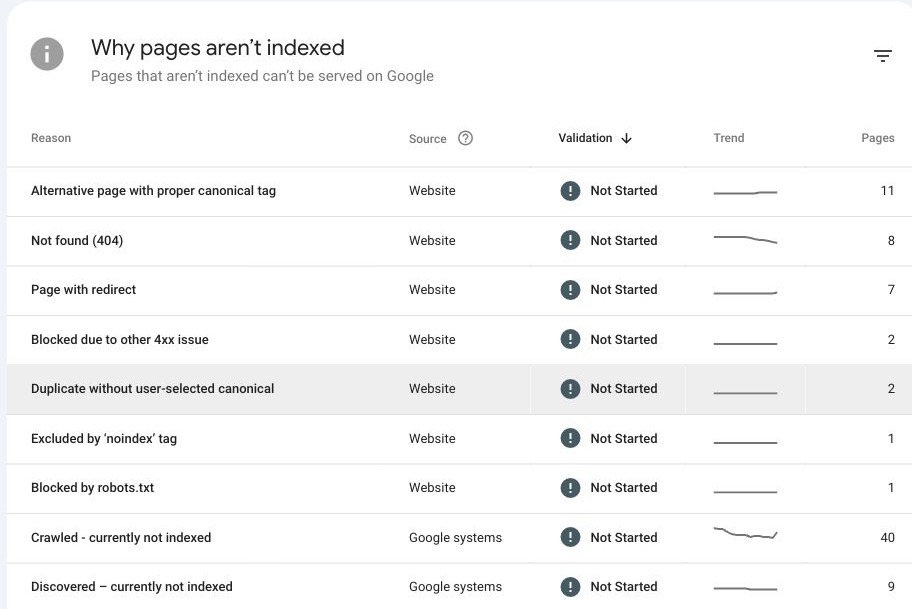
Google can discover old addresses, tracking URLs and duplicates, so these totals are not simply a count of the pages in your website menu. [2]
The example report accompanying this guide contains:
| Reason shown | URLs |
|---|---|
| Excluded by ‘noindex’ tag | 124 |
| Alternative page with proper canonical tag | 38 |
| Not found (404) | 27 |
| Page with redirect | 7 |
| Blocked due to other 4xx issue | 1 |
| Duplicate without user-selected canonical | 1 |
| Blocked by robots.txt | 1 |
| Crawled – currently not indexed | 28 |
| Server error (5xx) | 0 |
| Discovered – currently not indexed | 0 |
These figures are a snapshot, not a diagnosis. We cannot tell from the totals whether the excluded pages are important service pages or intentionally excluded utility URLs.
Source identifies whether the reason relates to the website or Google’s systems. Trend shows changes in the count. Validation tracks Google’s check of a submitted fix. “Not Started” means validation has not been requested for some instances; it does not mean every entry requires repair. [2]
Start with a list of pages that matter commercially: your homepage, main services, products, locations and useful articles. Check those before trying to reduce the overall exclusion count.
Crawling and indexing: different controls for different jobs
Three decisions often get mixed together: whether a crawler can request a URL, whether the content can appear in search, and which version represents duplicated content.
| Control | Job | Typical scope |
|---|---|---|
| robots.txt | Allows or restricts crawling for specified bots | URLs or patterns on a host |
Meta robots noindex | Instructs supporting search engines to exclude content | An individual page; can be applied through shared templates |
| X-Robots-Tag header | Sends indexing instructions in the server response | Pages or files, including PDFs |
| Canonical annotation | Suggests the preferred version of duplicate content | A relationship between URLs |
What is robots.txt?
Robots.txt is a text file normally found at an address such as https://example.com/robots.txt. It tells compliant crawlers which URLs they may crawl. Rules can target particular bots, individual addresses or groups of URLs. [3]
For example:
User-agent: *
Disallow: /internal-search/
This illustrative rule asks compliant crawlers not to request URLs beginning with /internal-search/. Your developer should choose rules for your site rather than copy another website’s file.
Blocking crawling does not reliably remove a URL from search. Google may still list a blocked URL based on links to it, without reading its content. Robots.txt is also public and provides no security for confidential information. Use authentication for private material. [3]
Site-wide settings versus page-level settings
In WordPress, Settings → Reading → Discourage search engines from indexing this site is a broad indexing setting. Check that it is unticked on a public website intended to attract search traffic. It is not password protection. [4]

Yoast SEO also lets you control whole content types or individual pages. These settings generally affect indexing instructions, rather than preventing Googlebot from requesting the URL. [5]
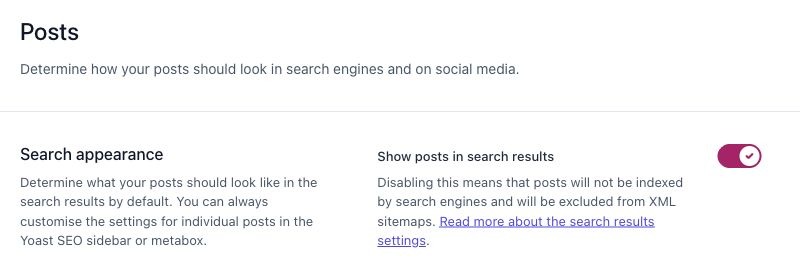
A page-level exclusion might output:
<meta name="robots" content="noindex">For a PDF, the server can send X-Robots-Tag: noindex instead. Google must be able to crawl the resource to see either instruction. Blocking the URL in robots.txt can prevent that instruction being read. Google does not support putting a noindex instruction in robots.txt. [6]
For example, a public enquiry confirmation page might reasonably remain accessible while being excluded from search. A customer portal containing personal details needs access protection, regardless of its search settings.
What do 3xx, 4xx and 5xx codes mean?
Your server sends an HTTP status code when a browser or crawler requests a URL. These codes describe what happened to the request. [7]
| Code | Meaning |
|---|---|
| 200 | The request succeeded |
| 301 / 308 | A permanent redirect |
| 302 / 307 | A temporary redirect |
| 401 | Authentication is required |
| 403 | Access is forbidden |
| 404 | The resource was not found |
| 410 | The resource has been intentionally removed |
| 429 | Too many requests |
| 500 | An internal server error |
| 502 | A gateway received an invalid upstream response |
| 503 | The service is unavailable |
| 504 | A gateway timed out waiting for an upstream response |
The families are shorthand: 3xx generally concerns redirection, 4xx concerns unsuccessful client requests, and 5xx concerns server failures. Not every 3xx response sends visitors elsewhere: 304, for example, concerns an unchanged cached resource. [7]
For SEO, a successful 200 response allows processing but does not guarantee indexing. Persistent server errors can slow crawling and eventually cause affected URLs to leave Google’s index. Google treats 429 responses as an overload signal, despite their position in the 4xx family. [8]
A page can also return 200 while displaying “page not found” or almost no useful content. Google may classify this as a soft 404. A genuine missing page should return the appropriate error status. [8]
What are canonicals, and why do they matter?
A canonical URL is the preferred representative of identical or substantially similar content. A canonical tag communicates that preference to search engines. [9]
For example, these addresses might display the same service page:
https://example.com/services/solar/https://example.com/services/solar/?utm_source=newsletter
The tracking version can identify the clean service URL as canonical. The preferred page should also identify itself with a self-referencing canonical:
<link rel="canonical" href="https://example.com/services/solar/">Canonicalisation helps consolidate signals, including links, around a preferred version. It also helps Google avoid repeatedly processing duplicate content. [9]
A canonical is a strong hint, not a command. Google can choose another URL. Your internal links, sitemap and redirects should reinforce the preference you declare. Changing the tag alone may leave conflicting signals elsewhere. [10]
Canonicals do not send visitors to another page. If an old URL has permanently moved and no longer needs to remain available, use an appropriate permanent redirect. [11]
Avoid these common mistakes:
- Pointing canonicals at broken, redirected or non-indexable destinations.
- Creating chains or loops between canonical URLs.
- Using several conflicting canonical tags. [12]
- Pointing different service pages at a broad parent page simply because their subjects overlap. Canonicals require substantially equivalent content. [11]
- Changing the canonical after JavaScript renders the page. The initial and rendered versions should agree. [13]
- Using inconsistent URL casing. Paths and query parameters are case-sensitive, even though domain names are not. [14]
Paginated listings also need care. Page two normally contains different items from page one, so each page should have its own canonical. Do not automatically point every page in the sequence to the first. [15]
How to set a canonical in Yoast SEO
Yoast automatically generates canonical tags for indexable pages. For an ordinary page that should represent itself, you can generally leave the custom canonical field empty and let Yoast manage it. [16]
When a deliberate override is needed:
- Open the relevant page or post in WordPress.
- Open the Yoast SEO sidebar or panel.
- Expand Advanced.
- Enter the full preferred address in Canonical URL, including
https://and the correct hostname. - Save or update the page. [17]
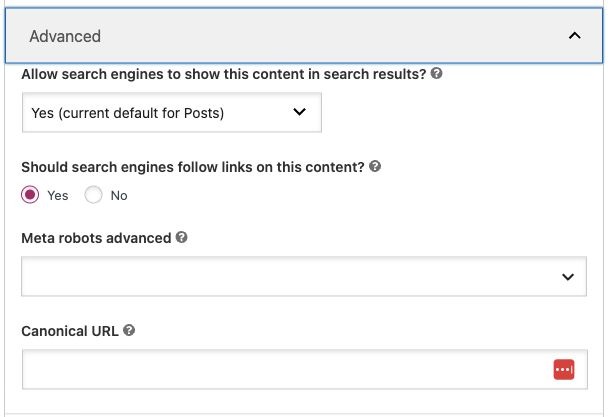
Afterwards, check the public page source for rel="canonical". Confirm it points where intended, including after any caching is cleared. If a theme or another plugin also generates canonical tags, have your developer resolve the overlap.
Yoast does not output a canonical on a page it marks noindex. Check the indexing setting before assuming a missing canonical is a fault. [17]
The ten indexing notifications explained
1. Excluded by ‘noindex’ tag
Meaning: Google found an instruction excluding the page from its index. [6]
What to do: Decide whether the exclusion is intentional. A thank-you page may belong here; a core service page probably does not.
For an individual page in Yoast, open Advanced → Allow search engines to show this content in search results? Choose Yes if it should be indexable, then save. For broader exclusions, inspect Yoast SEO → Settings, including Content types and Categories & tags. [5]
If the problem persists, ask your developer to check template output and server headers. A page setting cannot cancel a separate noindex instruction still being sent elsewhere. [6]
2. Alternative page with proper canonical tag
Meaning: Google recognises this URL as an alternative to an indexed canonical. [2]
What to do: Check that the preferred destination is the page you want customers to find. A tracking URL consolidated into its clean equivalent is usually a healthy result. Leave the exclusion in place when the relationship is correct.
3. Not found (404)
Meaning: The requested address returned a not-found response. [8]
What to do: Restore the page if it should exist. If its content moved, redirect to the relevant replacement. If it was removed and there is no suitable replacement, a genuine 404 or 410 is appropriate. [2], [7]
Fix internal links and sitemap entries that still advertise the missing address. Avoid sending every deleted URL to the homepage: that rarely helps someone looking for a specific product or article.
4. Page with redirect
Meaning: This URL redirects to another address. [2]
What to do: Check the destination and its indexability. A deliberate redirect from an old service URL to its replacement is expected. Update internal links to the destination and investigate loops, long chains or redirects to unrelated pages.
5. Blocked due to other 4xx issue
Meaning: Google encountered a 4xx response outside the report’s separately named categories. [2]
What to do: Inspect the URL to identify the actual code. Ask your developer or host to check access rules, security tools and server logs. A page working while you are logged in does not establish that Google can access it publicly.
For example, a security configuration introduced during a website update might deny certain requests. Investigate the specific block rather than disabling protection across the website.
6. Duplicate without user-selected canonical
Meaning: Google chose another representative URL without an explicit canonical preference from you. [2]
What to do: Inspect Google’s choice. If the pages genuinely duplicate one another, establish a consistent preferred URL. If both pages deserve separate search visibility, make their purpose and content meaningfully different. [18]
For example, two location pages that only swap the suburb name may offer little distinction. Useful differences could include actual local projects, service availability and location-specific customer questions.
7. Blocked by robots.txt
Meaning: A robots.txt rule prevents Googlebot from crawling the URL. [3]
What to do: Check whether that restriction is deliberate. Remove or narrow an accidental rule affecting public content. If the objective is to exclude an accessible page from search, use an appropriate indexing instruction and allow Google to read it. [6]
Do not delete the entire robots.txt file just to clear one notification. Identify the matching rule first.
8. Crawled – currently not indexed
Meaning: Google crawled the page but has not indexed it. [2]
What to do: For important content, examine the rendered page, duplication, internal linking and usefulness. This status alone does not prove that the writing is poor. [19]
Our review would ask: does the page answer a distinct customer question? Does it include specific expertise, examples or evidence? Can visitors reach it through relevant pages? Is the main content actually visible to Google?
A generic paragraph expanded into a practical guide may be worthwhile. Adding filler to reach an arbitrary word count is not a useful remedy.
9. Server error (5xx)
Meaning: The server failed to fulfil Google’s request. [8]
What to do: Prioritise failures affecting important pages or many URLs. Ask your host or developer to investigate availability, application errors, resource limits and upstream services.
The example report shows zero affected URLs in this category. That is useful, but it does not establish that the website has never experienced an outage. Match any reported failure to logs and monitoring from the relevant time.
10. Discovered – currently not indexed
Meaning: Google knows the URL but has not crawled it yet. [2]
What to do: Confirm the page has relevant internal links and appears in the sitemap when appropriate. Review server availability and excessive duplicate URL generation if the pattern persists. Google may delay crawling to avoid overloading a site. [19]
For a newly published article, allow time. For a whole new service section remaining uncrawled, investigate the shared discovery and access conditions.
What if Google chooses a different canonical?
Another notification you may encounter is “Duplicate, Google chose different canonical than user”.
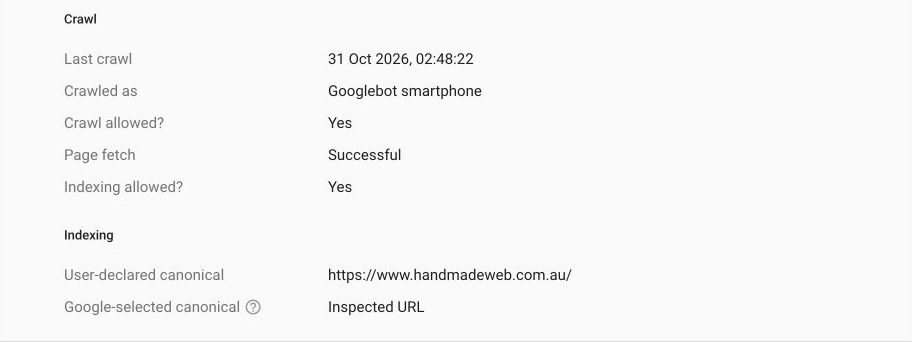
Use URL Inspection’s indexed data to compare User-declared canonical with Google-selected canonical. The live test cannot predict Google’s eventual canonical choice. [20]
Then compare the pages themselves. Check for unintended canonical output, conflicting redirects or hosting problems. If separate pages should rank independently, assess whether their main content is genuinely distinct. [18]
Avoid changing addresses repeatedly in response to a report that has not yet caught up with a previous fix. Record what changed and when, then check the next crawl evidence.
A sensible workflow for fixing indexing problems
We recommend working through the report in this order:
- Confirm the page’s purpose. Should this exact URL appear in search, consolidate elsewhere or remain excluded?
- Prioritise business impact. An excluded enquiry-generating service page deserves attention before an obsolete tracking URL.
- Inspect representative examples. Use URL Inspection to review Google’s stored information, then test the current URL and rendered output. [20]
- Fix the shared cause. Look for a content-type setting, template, redirect rule or access restriction affecting the group.
- Check the public result. Confirm the response, indexing instructions and intended destination agree.
- Ask Google to revisit where useful. Request indexing for a few important corrected pages; use a maintained sitemap for broader discovery. [21]
Where Search Console offers Validate fix, use it after correcting the unintended issue across the affected group. Validation checks a change; it does not repair the website or guarantee indexing. [2]
Repeatedly submitting the same URL does not speed up crawling. Reprocessing can take days or weeks, so monitor progress rather than promising an immediate return to search. [21]
Does indexing matter for AI search too?
For a page to appear as a supporting link in Google’s AI Overviews or AI Mode, it must be indexed and eligible to appear in Google Search with a snippet. Google says no special AI markup or additional technical optimisation is required for these features. [22]
Other AI services have their own retrieval systems. Search Console reports Google’s indexing position; it is not a visibility report for every AI platform. Fixing Google indexation is therefore an important foundation, rather than a promise of inclusion in AI answers.
Focus on the pages that help your customers
A useful indexing review connects technical settings to what the business needs its website to do. Can someone find the right service? Research a product? Read an informed answer before making an enquiry?
Keep the intended pages accessible, useful and clearly connected. Preserve deliberate exclusions where they serve a purpose. Investigate unexpected changes, especially after a redesign, migration or plugin update.
Need help making sense of Search Console? Handmade Web & Design can help you assess the report, prioritise the pages that matter and plan the work needed to improve your website’s search visibility.
Sources and further reading
- Google Search Central: How Google Search works
- Google Search Console Help: Page indexing report
- Google Search Central: Introduction to robots.txt
- Yoast: How to noindex an entire site
- Yoast: How to noindex URLs
- Google Search Central: Block Search indexing with noindex
- MDN: HTTP response status codes
- Google: How HTTP status codes affect Google’s crawlers
- SEJ: What is a canonical URL?
- SEJ: Google’s SEO tip for fixing canonical URLs
- SEJ: Google SEO 101: All about canonicalization
- SEJ: Google uses about 40 signals to determine canonical URLs
- Google Search Central: JavaScript SEO basics
- SEJ: Google’s advice on canonicals: they’re case-sensitive
- Google Search Central: Pagination best practices
- Yoast: Canonical URLs
- Yoast: How to change the canonical URL
- Google Search Central: Fix canonicalization issues
- Google Search Central: Troubleshoot crawling errors
- Google Search Console Help: URL Inspection tool
- Google Search Central: Ask Google to recrawl your URLs
- Google Search Central: AI features and your website

