How To Create A Google Account Using Any Email Address

Ever been asked to access Google Analytics, Google Ads billing, Google Business, or Search Console?
And then immediately hit with: “You’ll need a Google account for that.”
Cue the hesitation.
Because… what if you don’t want to use your personal Gmail?
Or you need invoices going to a work email instead?
Good news — this is where most people get it wrong.
You do not need to create a new @gmail account.
You can actually register your existing email address (yes, your normal work email) and use it as a Google account.
As long as you can access that inbox, Google will let you verify it and you’re good to go.
No extra inbox. No juggling logins. No unnecessary Gmail account sitting there gathering dust.
Below are the steps to create a Google account using any email.
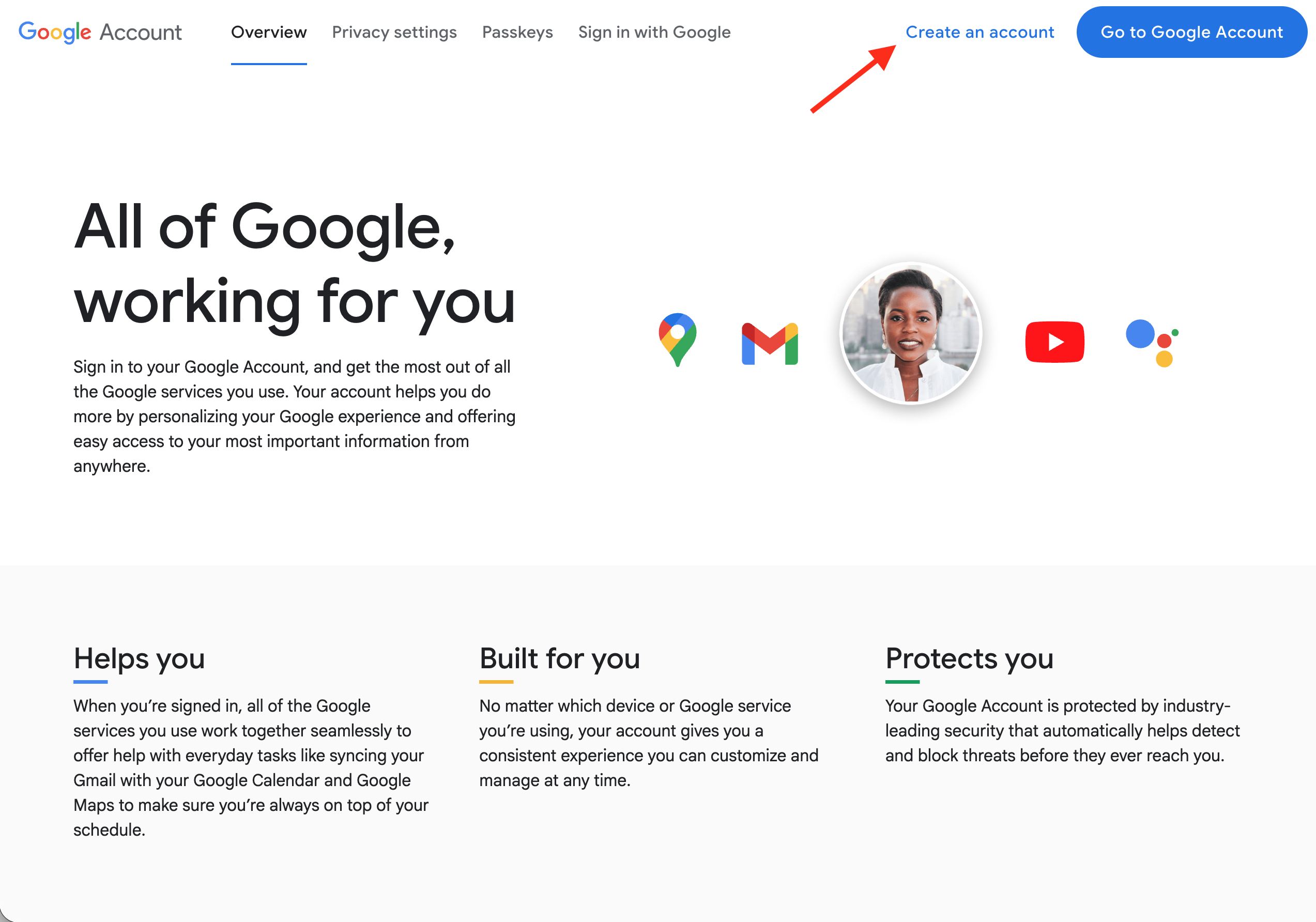
- Go to account.google.com (you don’t want to be logged in to another Google account while doing this. If you are logged in with another Gmail or Google account, open a new incognito/private browsing window first).
- Click ‘Create an account’

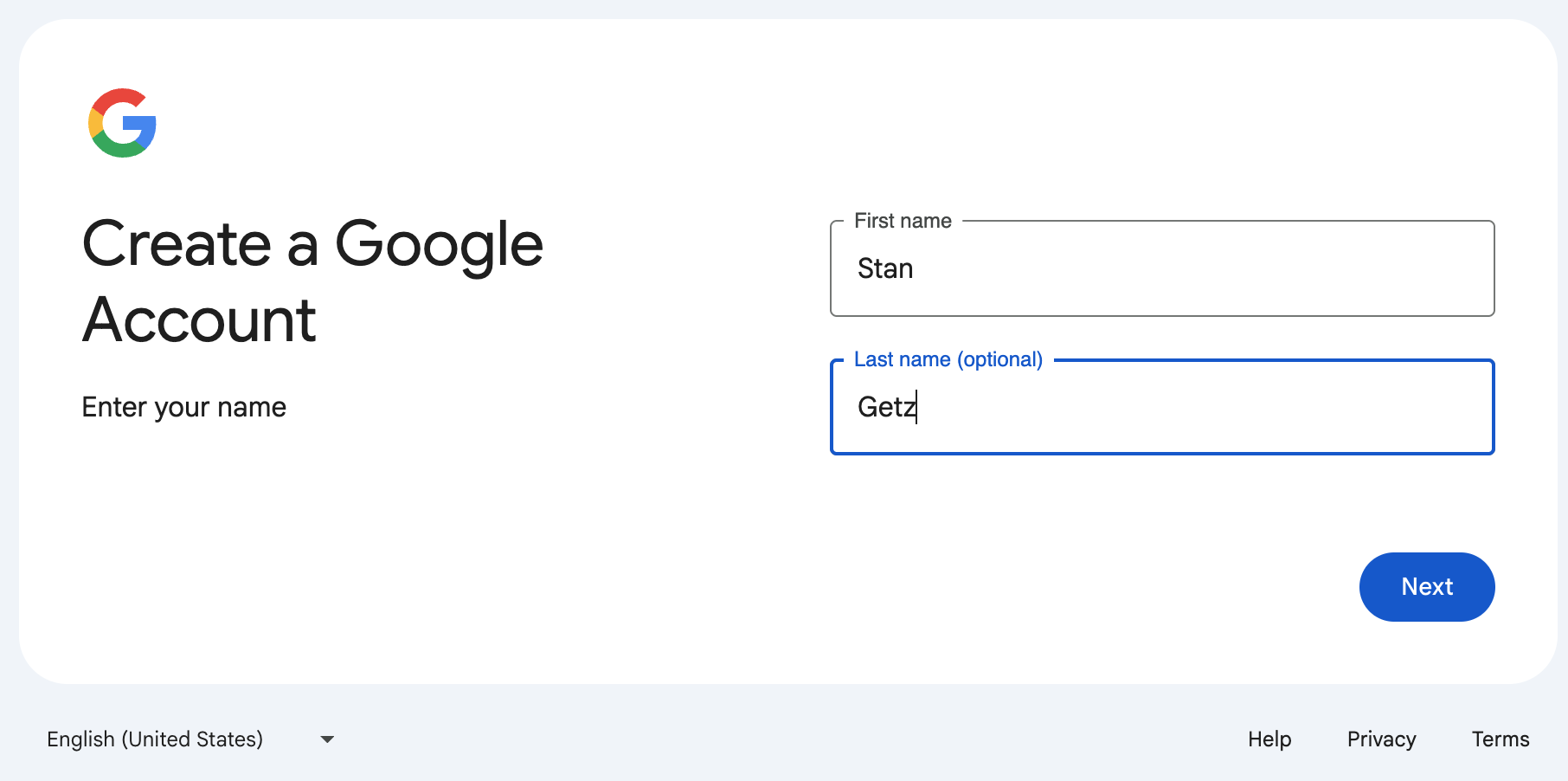
- Enter your name

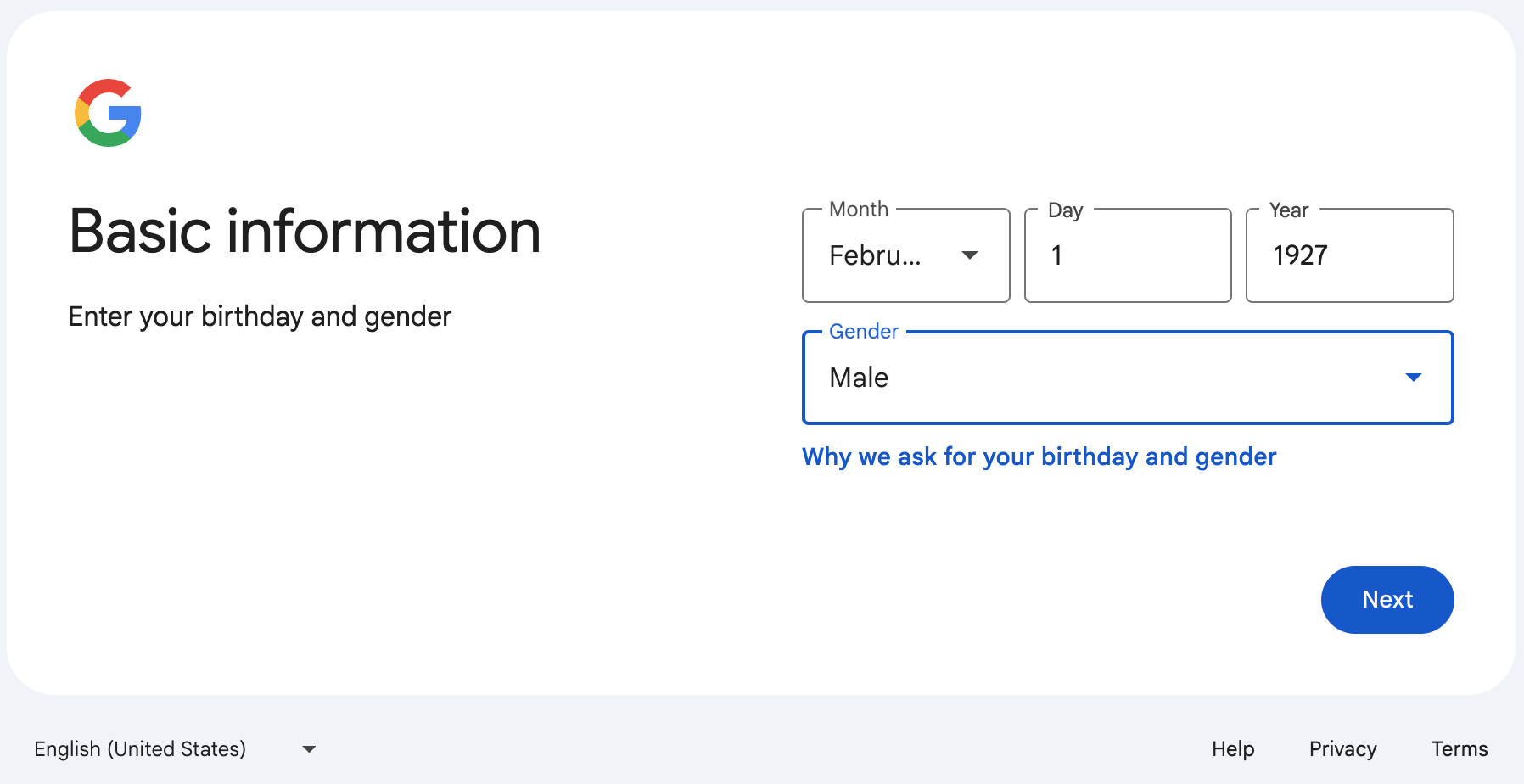
- Enter a Date of Birth

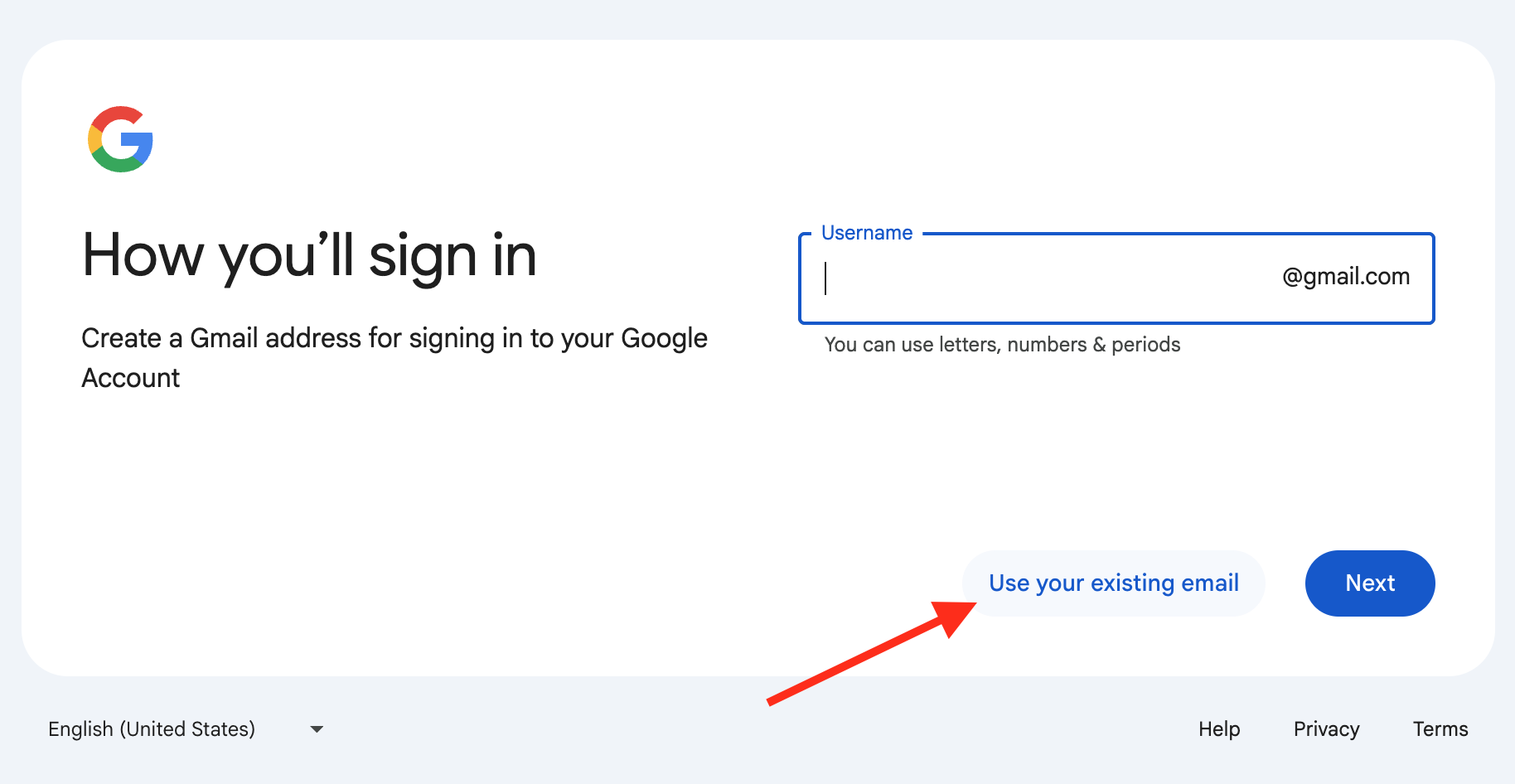
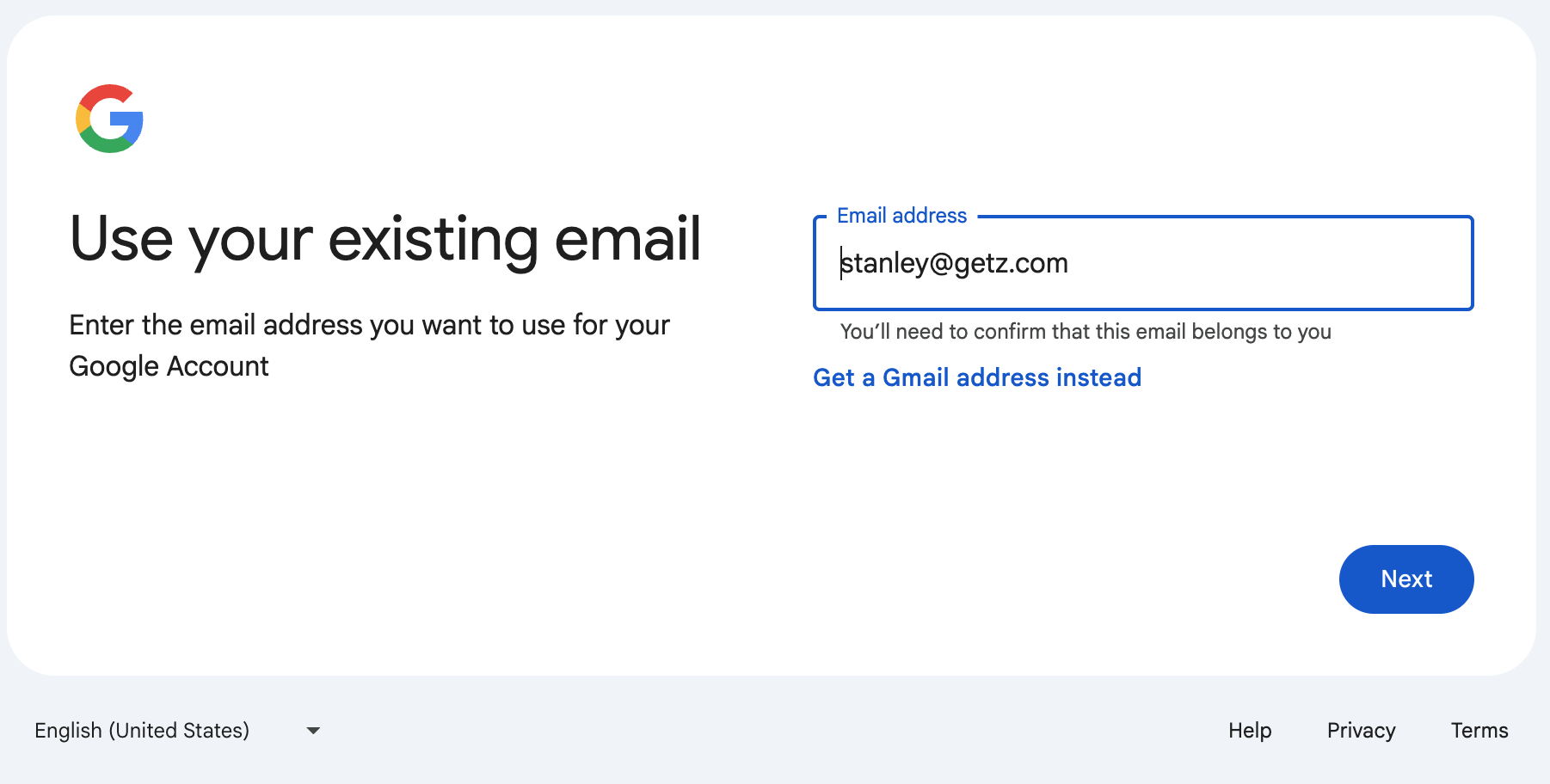
- Select the magical “Use your existing email” button

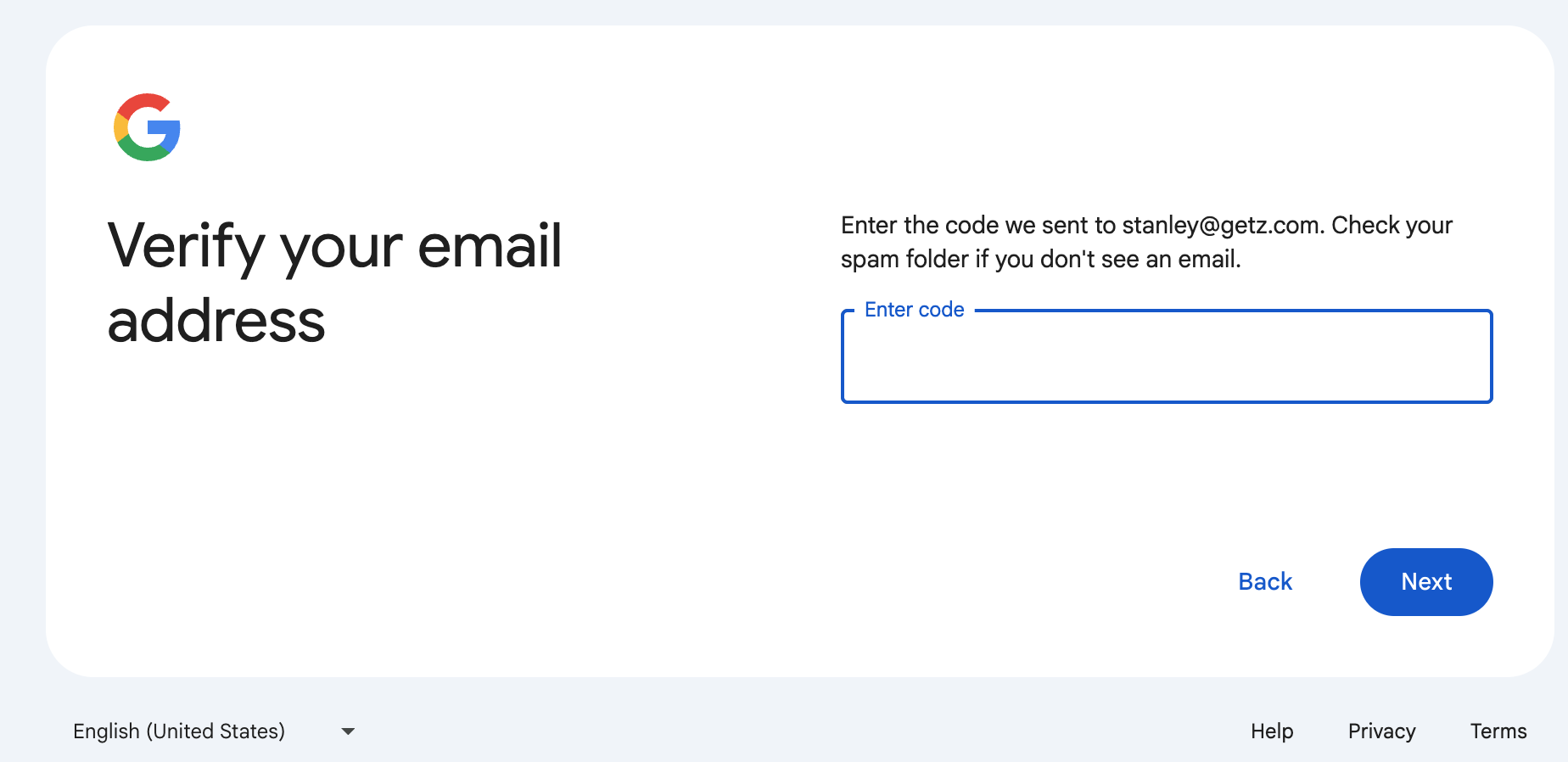
- Enter the email you’d like to associate with a new Google Account and click next. It’ll send you a verification code to that email account.

- Enter the code you received to the email

- Hey presto! You now have a Google Account associated with the non-Google-hosted email address, which can be used to access any Google properties you like.